Honeywell RTH9585WF Manual: A Comprehensive Guide
This manual provides detailed instructions for installing, configuring, and operating your Honeywell RTH9585WF thermostat, ensuring optimal home comfort and efficiency.
Welcome to the world of smart home climate control! The Honeywell RTH9585WF is a Wi-Fi enabled thermostat designed to provide convenient and efficient management of your home’s heating and cooling systems; This advanced thermostat offers a user-friendly interface, remote access via the Honeywell Home app, and compatibility with popular smart home platforms like Alexa and Google Assistant.
This thermostat isn’t just about setting temperatures; it’s about creating a comfortable and energy-saving environment tailored to your lifestyle. Features like geofencing and customizable schedules allow for automated adjustments, reducing energy waste and lowering utility bills. Understanding its capabilities will unlock a new level of control and convenience.
Understanding the Thermostat’s Features
The Honeywell RTH9585WF boasts a rich set of features designed for optimal comfort and energy savings. Key among these is its full-color, touchscreen display, providing a clear and intuitive user experience. Wi-Fi connectivity enables remote control and monitoring through the Honeywell Home app, accessible on smartphones and tablets.
Smart features like geofencing automatically adjust the temperature based on your location, ensuring energy isn’t wasted when you’re away. Customizable scheduling allows for tailored temperature settings throughout the day, while compatibility with voice assistants streamlines control. Detailed energy reports help track usage and identify potential savings.

Installation and Wiring
Proper installation is crucial for optimal performance. This section details the wiring process, including necessary tools and safety precautions, for a seamless setup.
Wiring Diagram Overview
Understanding the wiring diagram is fundamental to a successful installation. The Honeywell RTH9585WF typically requires connections for power (Rh, Rc), heating (W), cooling (Y), common (C), and fan (G).
Carefully examine the existing wiring before disconnecting the old thermostat; labeling each wire is highly recommended. The diagram illustrates how to connect these wires to the corresponding terminals on the thermostat base.
Incorrect wiring can damage the system or thermostat, so double-check all connections. A common wiring mistake involves the ‘C-wire’, which provides continuous power. Refer to the detailed diagram included in the packaging for specific configurations based on your HVAC system type – conventional or heat pump.
C-Wire Requirement and Installation
The Honeywell RTH9585WF generally requires a ‘C-wire’ – a common wire – for continuous power. Many older systems lack this wire, necessitating its installation. If a C-wire isn’t present, you may need to run a new wire from your furnace or HVAC system’s control board.
Alternatively, a C-wire adapter can be used, though compatibility varies. Installation involves connecting the adapter to the Rh and Rc terminals, then running a wire to the thermostat’s C terminal;
Always consult a qualified HVAC technician if you’re uncomfortable working with electrical wiring. Incorrect C-wire installation can lead to system malfunctions or damage. Verify proper voltage before proceeding.
Mounting the Thermostat Base
Before mounting, ensure power to your HVAC system is completely off at the breaker. Remove your old thermostat, carefully labeling the wires. Use the included mounting screws and wall anchors to securely attach the Honeywell RTH9585WF baseplate to the wall.
Ensure the baseplate is level for accurate temperature readings and a clean appearance. Gently feed the labeled wires through the opening in the baseplate.
Double-check that no wires are pinched or strained. The baseplate should sit flush against the wall. Once secured, you can proceed with connecting the wires to the appropriate terminals.

Initial Setup and Configuration
Begin by powering on the thermostat and following the on-screen prompts to connect to your home’s Wi-Fi network for remote access.
Powering On and Initial Screen
Upon initial power-up, the Honeywell RTH9585WF thermostat will display a welcome screen and begin a self-check process. This ensures all components are functioning correctly before proceeding. You may be prompted to select your preferred language and time zone during this stage.
The initial screen will guide you through basic setup options, including system type (heating, cooling, or heat pump) and fan control settings. Carefully review these options and select the configurations that match your home’s HVAC system. Accurate selection is crucial for optimal performance and energy efficiency.
Pay attention to any displayed messages or warnings, as they may indicate potential issues or require immediate attention. The thermostat’s interface is designed to be intuitive, but consulting the full manual is recommended for detailed explanations of each setting.
Connecting to Wi-Fi
To unlock smart features, connect your Honeywell RTH9585WF to your home’s Wi-Fi network. From the thermostat’s menu, navigate to the network settings and select “Connect to Wi-Fi.” The thermostat will scan for available networks. Choose your network from the list and enter your password when prompted, ensuring correct capitalization.
A successful connection will be indicated by a Wi-Fi symbol appearing on the thermostat’s display. If the connection fails, double-check your password and ensure your router is functioning correctly. Restarting both the thermostat and router can often resolve connectivity issues.
Once connected, the thermostat will automatically synchronize with the Honeywell Home cloud service, enabling remote access and advanced features.
Registering the Thermostat
Registering your Honeywell RTH9585WF unlocks the full potential of its smart features and provides access to dedicated support. Download the Honeywell Home app on your smartphone or tablet. Create an account or log in if you already have one.
Within the app, follow the on-screen instructions to add your thermostat. You’ll likely need to enter the thermostat’s unique identification number, typically found on the device itself or its packaging.
Registration links your thermostat to your Honeywell Home account, enabling remote control, scheduling, and access to energy usage reports. It also ensures you receive important software updates and notifications.
Operating the Thermostat
Effectively manage your home’s climate with the Honeywell RTH9585WF’s intuitive interface, allowing for easy temperature adjustments and customized scheduling options.
Navigating the User Interface
The Honeywell RTH9585WF boasts a user-friendly touchscreen interface designed for simple operation. The main screen prominently displays the current temperature and setpoint. Swipe gestures allow easy access to different menus, including scheduling, system settings, and fan control.
Icons clearly represent various functions, such as heating, cooling, and auto modes. Tapping the temperature display enables direct temperature adjustments. A dedicated menu provides access to advanced settings, like geofencing and smart home integrations.
The interface is logically organized, ensuring a smooth and intuitive experience for users of all technical levels. Contextual help is available throughout the system, offering guidance on specific features and settings. Familiarizing yourself with these controls unlocks the thermostat’s full potential.
Setting Temperature Schedules
The Honeywell RTH9585WF allows for customized temperature schedules to maximize comfort and energy savings. Access the scheduling menu through the main interface and create distinct programs for weekdays and weekends. You can define multiple periods per day, each with a specific temperature setpoint.
For example, program lower temperatures during sleep and when the house is unoccupied, and higher temperatures during waking hours. The thermostat supports seven-day scheduling, offering granular control over your home’s climate.
Easy-to-use tools simplify the process of creating and modifying schedules. You can copy settings from one day to another, streamlining setup. Regularly reviewing and adjusting your schedule ensures optimal performance and cost efficiency.
Using Geofencing Features
The Honeywell RTH9585WF’s geofencing capability automatically adjusts your home’s temperature based on your location. Utilizing the Honeywell Home app, you define a virtual perimeter around your home. When your smartphone enters or exits this geofence, the thermostat responds accordingly.
For instance, as you leave for work, the thermostat can automatically switch to an energy-saving “Away” mode. Upon your return, it reverts to your preferred comfort settings. This feature eliminates the need for manual adjustments and ensures consistent comfort.
Geofencing requires the Honeywell Home app and location services enabled on your smartphone. Multiple users can be configured for enhanced responsiveness and convenience.

Advanced Features and Settings
Explore sophisticated options like smart home integration, remote access via the Honeywell Home app, and customizable energy-saving settings for optimal control.
Smart Home Integration (e.g., Alexa, Google Assistant)
Seamlessly connect your Honeywell RTH9585WF thermostat to popular smart home platforms like Amazon Alexa and Google Assistant. This integration allows for convenient voice control of your home’s temperature, enhancing comfort and accessibility. Simply enable the Honeywell Home skill or action within your preferred voice assistant app and follow the on-screen instructions to link your accounts.
Once connected, you can use voice commands to adjust the temperature, set schedules, or inquire about current conditions. Enjoy hands-free control and a truly integrated smart home experience. Explore the possibilities of creating routines and automating your home’s climate based on your lifestyle.
Remote Access via Honeywell Home App
The Honeywell Home app unlocks full control of your RTH9585WF thermostat from anywhere with an internet connection. Download the app on your iOS or Android device and create an account to begin. After registering your thermostat, you’ll gain the ability to adjust temperature settings, view energy usage reports, and manage schedules remotely.
Receive alerts for extreme temperatures or system malfunctions, ensuring your home’s comfort and efficiency are always maintained. The app’s intuitive interface provides a user-friendly experience, allowing for easy management of your home’s climate, even when you’re away.
Energy Saving Tips and Settings
Maximize energy efficiency with the RTH9585WF’s smart features. Utilize the scheduling function to automatically adjust temperatures based on your daily routine, reducing energy consumption when you’re asleep or away. Explore the “Smart Response” setting, which learns your heating and cooling patterns to optimize performance.
Enable geofencing to automatically adjust the temperature when you leave or approach home. Regularly review energy usage reports within the Honeywell Home app to identify areas for improvement. Consider utilizing the thermostat’s filter change reminders to maintain optimal system performance and efficiency.

Troubleshooting Common Issues
This section addresses frequent problems, like power failures, Wi-Fi connectivity issues, and inaccurate temperature readings, offering solutions for a smoothly functioning thermostat.
Thermostat Not Powering On
If your Honeywell RTH9585WF thermostat fails to power on, begin by verifying the power supply. Ensure the circuit breaker controlling the thermostat is not tripped and is functioning correctly. Next, carefully inspect the wiring connections at both the thermostat and the heating/cooling system. A loose or disconnected wire can prevent power from reaching the unit.
Confirm the C-wire is properly connected, as this is crucial for consistent power. If a C-wire isn’t present, consider installing one or using a C-wire adapter. Check the batteries (if applicable) and replace them with fresh ones. If the issue persists after these checks, consult a qualified HVAC technician to diagnose potential problems with your heating or cooling system’s power supply or the thermostat itself.
Wi-Fi Connection Problems
Experiencing Wi-Fi connectivity issues with your Honeywell RTH9585WF? First, ensure your home Wi-Fi network is operational and that the thermostat is within range of the router. Verify you’ve entered the correct Wi-Fi password during setup – capitalization matters! Restart both your router and the thermostat; a simple reboot often resolves temporary glitches.
Check for interference from other devices operating on the 2.4 GHz band. If problems continue, try temporarily disabling the router’s firewall or security settings to see if they’re blocking the connection. Ensure your router’s firmware is up-to-date. If all else fails, reset the thermostat’s Wi-Fi settings and repeat the connection process.
Incorrect Temperature Readings
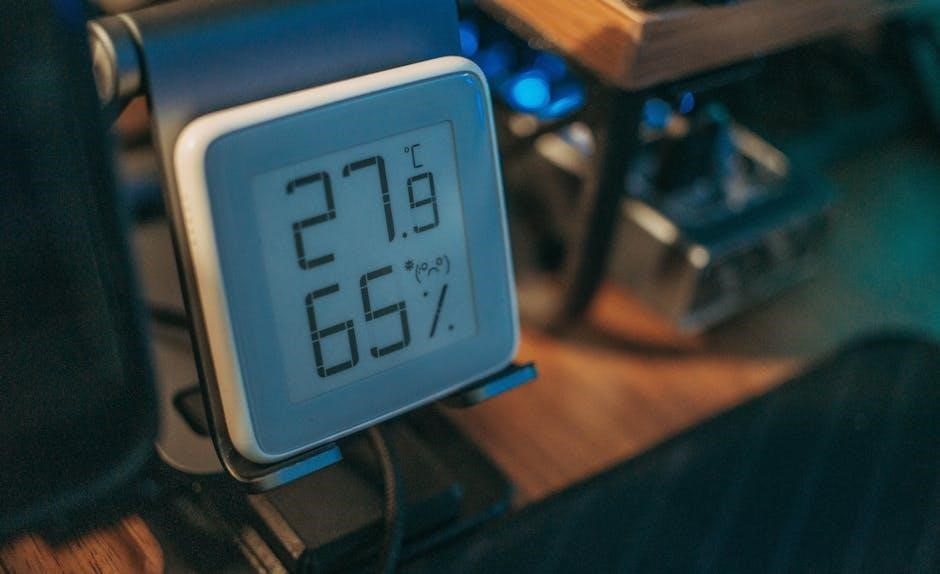
If your Honeywell RTH9585WF displays inaccurate temperature readings, several factors could be at play. Ensure the thermostat isn’t directly exposed to sunlight, drafts, or heat sources like lamps or appliances, as these can skew the sensor’s readings. Verify the thermostat is level on the wall; an uneven installation can affect accuracy.
Calibrate the temperature within the thermostat’s settings menu if a consistent offset exists. Compare the thermostat’s reading with a reliable thermometer placed nearby. If the discrepancy persists, consider relocating the thermostat to a more representative location within your home. A faulty sensor may require professional servicing or replacement.
Maintenance and Care
Regular cleaning with a soft, dry cloth will maintain your Honeywell RTH9585WF’s appearance and functionality, ensuring years of reliable performance and accurate readings.
Cleaning the Thermostat
To ensure optimal performance and longevity of your Honeywell RTH9585WF thermostat, regular cleaning is recommended. Always begin by completely powering off the thermostat at the breaker to avoid any electrical hazards. Use a soft, dry microfiber cloth to gently wipe the thermostat’s faceplate and surrounding areas.
Avoid using abrasive cleaners, solvents, or excessive moisture, as these can damage the display or internal components. For stubborn smudges, lightly dampen the cloth with water, ensuring it’s wrung out thoroughly before wiping. Do not spray any liquids directly onto the thermostat. Pay particular attention to cleaning around the edges and any vents to prevent dust buildup. After cleaning, restore power to the thermostat.
Battery Replacement (if applicable)
The Honeywell RTH9585WF thermostat typically relies on a consistent power supply, often through the HVAC system’s wiring. However, some configurations may utilize batteries as a backup during power outages or for specific functionalities. To check if your model requires batteries, consult the initial setup documentation or the thermostat’s settings menu.
If batteries are needed, the thermostat will usually display a low-battery warning. Use only the battery type specified in the manual – typically AA alkaline batteries. Carefully open the battery compartment (location varies by model) and replace the old batteries with new ones, ensuring correct polarity.
Safety Information
Always disconnect power before wiring; Improper installation can cause electrical hazards or damage equipment; consult a qualified technician if unsure.
Important Safety Precautions
Prior to installation or maintenance, always disconnect the power supply to your HVAC system at the breaker box to prevent electrical shock. Incorrect wiring can lead to dangerous situations, including fire or equipment malfunction. This thermostat is designed for use with 24VAC systems only; do not connect to higher voltage sources.
If you are uncomfortable with electrical work, consult a qualified HVAC technician for assistance. Never attempt to disassemble or repair the thermostat yourself, as this will void the warranty and could create a safety hazard. Keep small parts away from children during installation and maintenance. Ensure all wiring connections are secure and properly insulated.
Regularly inspect the wiring for any signs of damage or wear. Do not operate the thermostat if it appears damaged. Follow all local electrical codes and regulations during installation.
Warranty Information
Honeywell warrants this RTH9585WF thermostat to be free from defects in material and workmanship for a period of one (1) year from the date of purchase. This warranty applies to normal residential use and does not cover damage resulting from misuse, abuse, accident, or unauthorized modification.
To obtain warranty service, you must provide proof of purchase and return the defective thermostat to Honeywell or an authorized service center. Honeywell’s obligation under this warranty is limited to repair or replacement of the defective thermostat, at Honeywell’s discretion.
This warranty does not cover labor costs associated with installation or removal of the thermostat. For complete warranty details and limitations, please visit the Honeywell Home website or contact Honeywell customer support.